THE UDB FIELD GUIDE
Find the answer.
Keep building.
From your first inspection to a dashboard built around your game. Pick a task and follow the steps.
Choose the guide for your version. Core guides follow the 1.0.0276 manual. Guides marked Development describe version 2.13.08106, which may include features missing from the current Asset Store package. Controls may look different in your version.
26 guides
No matching guides.
Try a shorter feature name, or clear your filters to browse everything.
Open UDB
A useful first five minutes.
Import the UDB package from the Unity Asset Store, then start with a scene object whose data you recognize.
- Open UDB from Unity’s Tools menu.
- In Instance mode, drag a GameObject, Component, or ScriptableObject into Root Obj.
- Find one familiar field. Choose Inspect ► to enter its nested data.
- Use the breadcrumb and back/forward controls to return.
For class-level data, switch to Static mode and enter a type name such as Time, Physics, or your own class. Static inspection does not require an object instance.
Inspect private & nested data
Follow the value, one level at a time.
- Select a root object and the component you want to inspect.
- Use the member visibility controls to include private fields, properties, or static members as needed.
- Choose Inspect ► on an object, list, array, or dictionary. Use the collection’s pages and name/type filters to narrow a large view.
- Use the padlock to keep the window on this target while selecting other objects.
A field shows stored data; a property can execute a getter. Enable property reading deliberately when you need it. A hidden value, a blocked getter, and a null reference are different conditions.
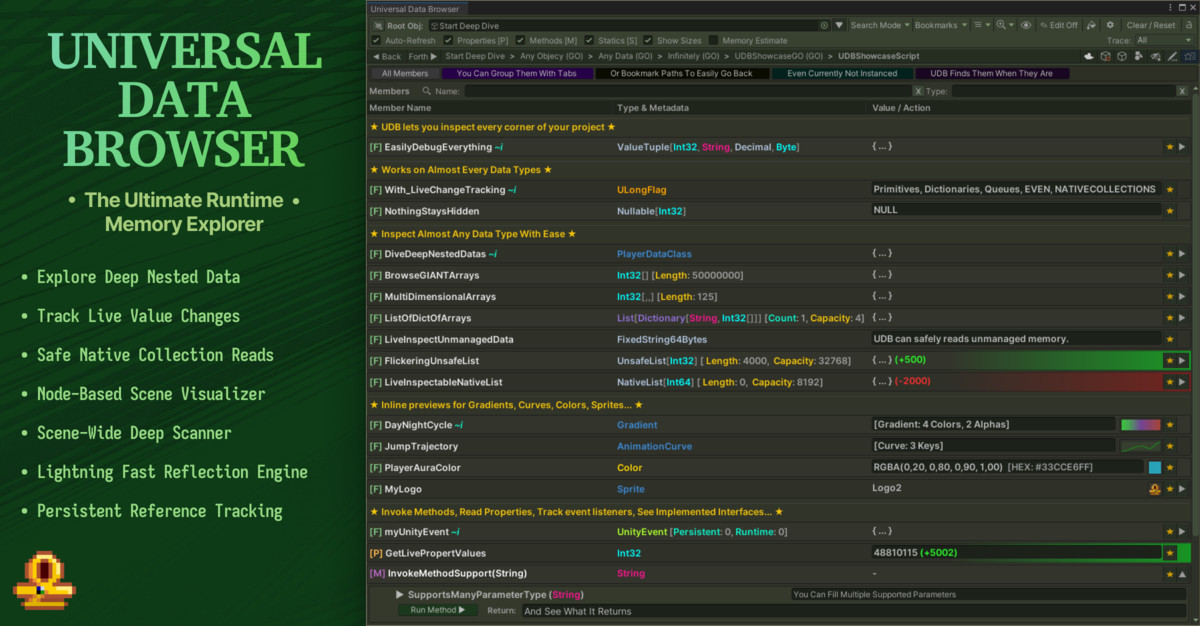
Edit supported values
Try a small change and see its effect.
- Enter Play Mode and find a supported value, such as a number or boolean, on a disposable test object.
- Enable UDB’s editing control. If a field is still protected, check the relevant private/static, asset, or Edit Mode setting.
- Change the value and observe the result in your game. Game code may overwrite it on the next update.
- Turn editing off when finished.
Reading a private member does not automatically grant editing. Some properties and collection types have additional restrictions.
Bookmarks & pinned values
Save a place, or keep watching a value.
Use a bookmark to return to a view. Use a pin to keep a particular value visible while browsing elsewhere.
- Navigate to a useful nested path and use the folder/bookmark control in the toolbar.
- Return to the saved view from your bookmarks. The target and path must still resolve.
- For continuous monitoring, click the row’s ★ to add it to the Pinned Watchlist.
- Remove pins you no longer need, or clear a view when you are done with its objects.
The pin circuit breaker stops repeatedly searching a path that fails to resolve. It resets during Play/Pause state changes. Active views and pins retain references to their targets, which can affect garbage collection.
Back to guide search ↑Reading controls & performance
Choose how much work UDB does.
Start with the default protections, then enable the smallest set of reads or edits your inspection needs.
- Live Property Read: getters execute code. Some Unity getters, including
Renderer.materialandMeshFilter.mesh, are blocked because reading them can create objects. - Unsafe Custom Collection Reading: custom collection counts and iterators can run user code. This option is separate from ordinary built-in collection inspection.
- Allow Live Unsafe Read: native reads are opt-in and reset each session. This does not guarantee safe access while jobs are writing to a collection.
- Repaint Delay (s): raise the delay to reduce refresh work. Zero allows uncapped repainting.
- Trace History Log Delay: reduce the frequency of history samples when tracking rapidly changing data.
Memory estimates depend on the selected shallow/layout/deep view; treat them as estimates. Clear unused views and pins if they are retaining objects or adding inspection overhead.
Back to guide search ↑Record value history
Give a changing value a timeline.
- Pin the value you want to follow.
- Use its recording control and open Record History.
- Switch between the graph, text log, and available type-specific analytics.
- Use Export History when you need a text record to compare or share.
Adjust the history delay to match the question: a slower sample rate is useful for a long observation, while short changes may require closer sampling. Watchdog conditions can pause the Editor when a sampled value meets a condition.
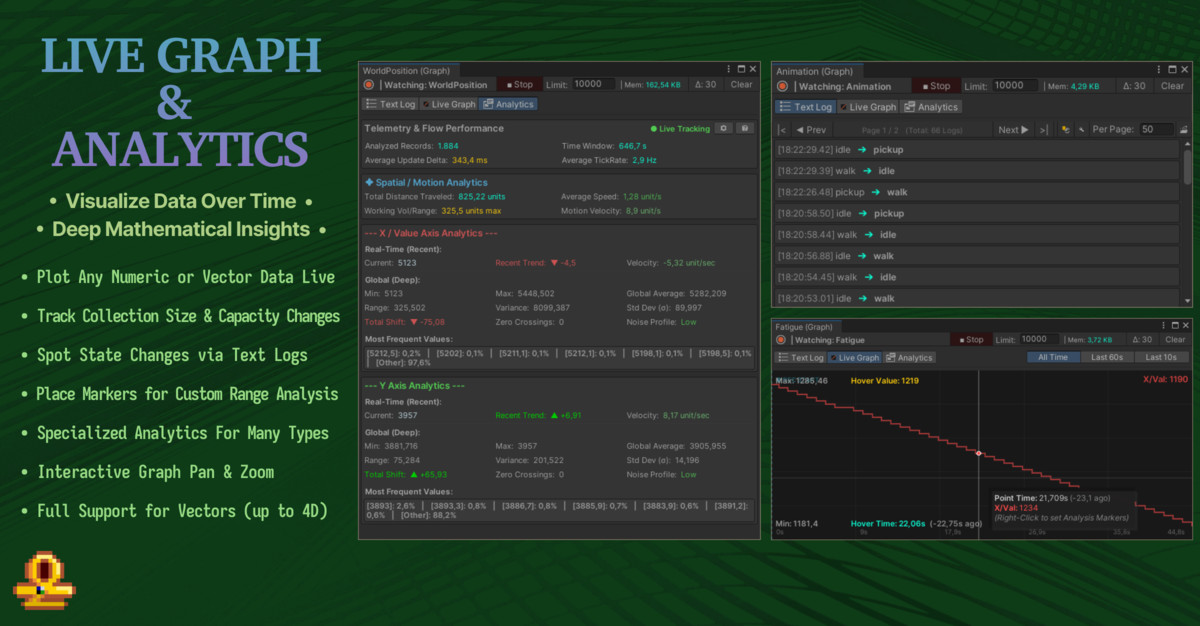
Find references with Deep Scanner
Turn a broad question into a short result list.
- Open Deep Memory Scanner and choose the target and search scope.
- Choose a search relevant to the problem: object references, component/field names or types, missing/null references, or destroyed Unity references.
- Run the scan and inspect a result to follow its path back into UDB.
- For a changing value, use First Scan, change the game state, then use Next Scan to narrow by changes, increases, or decreases.
For example, search for references to a selected object when you need to understand which inspected objects still refer to it. Restrict the target and depth before broadening the search.
Results cover the configured traversal and supported data. A scan is not proof that every reference in the process was found.
Back to guide search ↑Compare changes with Live Observer
Watch a larger object over time.
- Open Live Deep Observer for the object you want to monitor.
- Choose a sampling interval and the nested data you need to observe.
- Perform the gameplay action you are investigating.
- Review the changed paths, grouped results, and hit counts; inspect an interesting path in UDB.
Use a single pinned history for one known value. Use the observer when you are still discovering which members change during an action, such as equipping an item.
The observer compares samples. A value that changes and returns to its original state between samples may not appear. Narrow the observation when a large object graph creates too much noise or refresh work.
Back to guide search ↑Build a Search & Bind pipeline
Reuse a chain of data selections.
Search & Bind lets you describe a data flow visually. It is separate from UQL and from the collection search box.
- Open Search & Bind Pipeline and select a Source.
- Use Iterate to visit a collection and Extract to select a member.
- Add a Filter to keep the items you need. Add supported Math/Call steps only when the workflow needs them.
- Use Collect to gather the results. Save the profile for reuse.
Savevar and Loadvar can pass values between pipeline steps. Compatible saved profiles appear through the green binding control in supported views.
Build and inspect a small pipeline first: source → collection → field → filter. Check that each step produces the type and values the next step expects.
Back to guide search ↑Draw spatial data with Visualizer
See values in the Scene view.
- Open Visualizer for the selected objects.
- Choose the data source and extract the positions, vectors, or other supported values you need.
- Configure the drawing type and its visual options.
- Use filters and pipeline steps to reduce the view, then save a preset if you will reuse it.
Use this to inspect a collection of positions or follow a vector whose meaning is difficult to see in a numeric row. Check whether your source uses local or world coordinates before interpreting the drawing.
Visualization follows supported data through the configured pipeline. A missing source, a filtered item, or a coordinate-space mismatch can explain an empty or misplaced drawing.
Back to guide search ↑Look for candidate code
Connect a suspicious value to source you can inspect.
Code Detective is a static source-search aid. Use it when you have found a member in UDB and want to investigate code that may be related to it.
- Open the analyzer for the relevant member or search target.
- Review candidate source matches.
- Open a match in your IDE and check the surrounding logic.
Search inside collections
Find a type, member, value, or missing entry.
- Open a collection and find Search Value:. Dictionaries and native maps expose separate Key: and Value: fields.
- Enter a search expression, then press Enter or choose Find.
- Inspect the matching items. Use X to clear the search.
| Example | Purpose |
|---|---|
TYPE: enemy | Match an item’s runtime type name. |
HAS: health | Find a component on a GameObject/Component, or a field/property on an ordinary object. |
VALUE: idle | Search self text and simple declared fields/properties. |
EXTRACT: health | Extract the named member from matching items. |
META: text | Search appended metadata. |
NULLS | Find null entries. |
This is UDB’s collection search syntax, not UQL. Searches can have time/count limits; read any incomplete-search warning. VALUE: is not an unrestricted recursive query.
The development reader also handles additional queue, multidimensional-array, and native collection cases. Native support depends on the type and accessible API; some unsafe collection types remain unsupported.
Back to guide search ↑Focus a history on one interval
Mark the interesting moment before exporting.
- Record a value and open Record History → Live Graph.
- Right-click once to set Marker A, then again to set Marker B.
- Switch to Text Log to see entries within that interval.
- Choose Export History to export the selected interval.
A third right-click begins a new A marker. Clear Markers removes the interval filter. Markers are placed in the graph; the Text Log uses their timestamps.
After a Unity domain reload, you may need to reopen the graph. Marking a range filters the available recording; it does not restore samples that were never captured.
Back to guide search ↑Inspect a GPU buffer
Read back typed data or an image.
- On a supported buffer row, choose !Read ► (Read GPU Buffer) to open GPU Buffer Reader.
- Choose Struct Array, then enter a fully qualified C# Type: or use a quick type button.
- Choose Push New Read. Use Update View to refresh an existing result.
- For image output, choose Texture2D, enter Width, Height, and Format, then choose Push New Image.
Auto-Refresh / Every … s provides periodic readback. Choose an interval appropriate to the buffer size and the cost of reading it.
Build your first dashboard
Keep related data together.
- Open Dashboard Manager, choose + New Dashboard, and name it.
- Set Match to
ByName,ByType, orBoth. Fill the corresponding Name/Type fields; commas allow multiple matches. - Choose + Add Bind Rule and name the rule.
- Choose Bind Data Variable, then use Bind To Dashboard Rule on the desired data row.
- Add a widget and enter the exact rule name in Data Source (Rule Name).
- Choose Save Dashboards.
Disable Show in Pin List if a rule should feed widgets without adding dashboard pins. If a widget is empty, first check its rule name, match settings, and whether the target is currently available.
Back to guide search ↑Choose a dashboard widget
Match the display to the question.
Available widget types include MiniProgressBarGrid, ValueTextGrid, DetailedHorizontalBar, CombinedStatsCard, HeatmapMatrix, StateLEDGrid, LineGraphPlot, VerticalBarChart, and IconPreviewGrid.
- Add a widget and choose its Type.
- Assign its Data Source (Rule Name). Set Min Bound and Max Bound where applicable.
- For a supported grid, configure Fixed Grid (2D Map). Set Rows (Y) to zero for automatic rows.
- For a stats card, choose + Add Stat and assign each stat’s rule.
For a line or bar chart with exactly one source value, enable Track History (Single Value) and set Max Points and Interval(s). This history is sampled during repaint, not captured every game frame.
Check source types before interpreting numeric widgets: unsupported numeric conversions can appear as zero.
Back to guide search ↑Reuse bindings across objects
Follow the current root or collection item.
- Enable Relative Root when a rule should resolve against the current root object.
- Use Contextual Bind for a shared member such as
Health, and check the selected member name. - For collection steps, select
Fixed,ContextRelative,IterateLimit, orIterateRange. - Set Start / Limit or Start / End as appropriate. Supported bounds can use bound values or dashboard variables.
ContextRelative depth 0 means the deepest/current collection index; depth 1 means its parent. The context-path toolbar display helps you inspect those depths.
IterateRange includes its end index and clamps bounds to the collection. Contextual binding searches the available filtered members; a missing member can yield no result.
Add dashboard controls
Add sliders, number fields, and buttons to a dashboard.
- Choose + Add Control, then set the label and Type.
- For
ControlVariable, set Custom Name and Def, then chooseNumberField,Slider, orButtonGroup. - Set slider Min/Max, or use + Btn for Add, Subtract, or Set actions.
- Reference the variable through the relevant widget or range Var control.
These controls change a local dashboard variable; they do not edit a game field. For OpenVisualizerPreset, enter the exact saved Preset Name.
The advanced ExecuteMethodButton preview acts on the first target-rule result and supports zero parameters or one converted argument. For ordinary method inspection, use the separate method invocation workflow.
Style rows & append metadata
Make important values easier to spot.
Numeric styles
- Open Custom Data Stylizer → + New Rule.
- Set Var Name, a style, and Min/Max.
- Choose
ProgressBar,TextColor,RowHighlight,RowBarBack, orRowBarWithDiff. - Bind bounds using Global, Indexed, Contextual, or combined binding if needed. Extract Collection Size can use a supported collection’s count. Choose Save Styles.
Related values beside a row
- Open Custom Data Display → + New Rule, then set Match and optionally Exact.
- Choose + Add Extract, set a Label, then Bind Metadata Variable.
- Select Global, Indexed, Relative, or Contextual binding. Use Hide If Null, Draw Visual Preview, or {} for collection length/count where appropriate.
- Choose Save Styles.
Relative metadata needs a current row path. An unresolved path may show no value. In the rule manager, Showing: Context filters the manager; it is different from a rule’s Match Context restriction.
Back to guide search ↑Format values for readability
Choose how supported values are displayed.
Open More Options → Custom Value Formats. Options include Show Color HEX, IntPtr Hexadecimal Format, and Display Detailed Values For Supported Types.
Dot Format Primitive Values uses dots for thousands and commas for decimals. With three decimal places, a value can display as 1.234,500. The formatter uses fixed fractional digits even where the menu says “Max … Decimal Place”.
Alternative Object Value Format and Alternative Component Values offer other built-in summaries for supported objects. These settings change presentation; they are not a general custom format-template language.
Back to guide search ↑Invoke methods & inspect ref/out
Run an explicit call, then inspect its results.
- Enable Methods [M] and open an invokable method. By default, explicit invocation uses the
[InvokeableFunc]attribute. - Enter supported parameters. For collections, use Init Collection, + Add Element, or Set Null.
- Review any modification acknowledgement, then choose Run Method ►.
- Use Inspect … Args to inspect returned or mutated collection arguments.
ref arguments need initialized input; out arguments are supplied by the call. A preview of the first 49 collection items does not mean the remaining arguments are discarded.
Force All Methods Invokeable is a separate override. [PropertyFunc] treats a parameterless method as a live read, so it can execute repeatedly. Method calls can change game or Editor state.
Read metrics & session logs
Put Editor overhead and session time in context.
- Enable Show-Hide Toggles / Show Memory&Render Metrics, or use MS / Show Metrics.
- Choose Configure Profiler Metrics to select counters and the update interval.
- For session history, enable Messages / Enable Session Time Logger, then choose Open Session Logs.
The metrics include Editor, UDB, and other-window overhead; they are not isolated player-build measurements. Reset Session Total GC Counter resets the accumulated counter.
Strict Session Tracking (Crash-Safe) keeps a more persistent session record. Logs offer uptime, crash counts, reload, and clearing. A session marked CRASHED means no normal close was recorded, not that UDB diagnosed the cause.
Back to guide search ↑Review reflection edit logs
Check what an edit recorded.
- Enable Edit Mode in UDB and choose the history icon labelled Edit Logs.
- Review the timestamp, Edit Mode/Play Mode context, status, and Old / New values.
- Use Copy for a value, or Inspect to open a saved path.
Reload reloads the archive. Clear All Logs removes records without reverting project values. Logs are stored under UserSettings/UDB_EditHistory.log, with up to 1,000 loaded records.
UQL & edition availability
Know which package a guide applies to.
The currently listed UDB package is the visual tool. A future full package is planned to include UDB + UQL; UQL is also planned as a standalone product.
Explore the UQL product page and workflow examples ↗
UQL lets you query data and save workflows to run again. Browse the UQL guides, commands, and examples for the current development reference. The collection search expressions on this page are UDB controls, not UQL examples.
UDB Lite is being prepared around private/nested managed inspection, supported value editing, and bookmarks. Advanced graphs, watchlists, scanning, visualization, dashboards, and automation belong to the full edition. A download link will appear when the public package is ready.
Features marked Development may not be in your installed package. Check your version and the current Asset Store release notes.
Back to guide search ↑Troubleshooting & support
Send a report that is easy to reproduce.
A field or property is missing
Check the root object, member visibility, name/type filters, and property-reading controls. Clear a collection filter before concluding that an item is missing.
A pin or dashboard is empty
The target may have been destroyed or replaced. Revisit its path. For dashboards, check match rules, the exact source-rule name, current context, and member filters.
A change does not stay changed
Game logic may write the value again. Check Unity’s current mode and whether the target is an asset or a runtime instance. Editing and persistence are separate concerns.
The Editor slows down while inspecting
Raise repaint/history delays, narrow deep scans and observers, stop unneeded recording, and clear unused pins. Getters and GPU readback can add work beyond drawing the window.
Email deadbeakofficial@gmail.com with your Unity version, UDB version, the tool/window involved, expected and actual behavior, and the shortest reproduction steps.
Back to guide search ↑